
A long ChatGPT conversation can become difficult to work with even when the project itself is going well. The page may feel heavier, important decisions may be buried hundreds of messages back, and starting a fresh chat can feel risky because you do not want to explain the whole project again.
If you are doing the move manually, the safest approach is usually not to copy the entire conversation blindly. Instead, write a short note for the new chat with the information you personally consider important: the goal, key decisions, constraints and the next step. If you also need files, attach the specific files yourself.
This manual checklist is not a description of ContinuForge automation. ContinuForge does not claim here to automatically identify goals, decisions, rejected ideas, important files or unresolved questions.
ContinuForge is introduced later in this article only for the functions it actually provides in the current product.
Why long ChatGPT conversations become hard to manage
There are several different problems that people often describe as “the chat is too long.”
First, the interface itself can become inconvenient. A conversation with many messages, long code blocks, tables, images or attachments simply contains more material to render and navigate.
Second, finding one old decision becomes harder. Search can help you locate conversations, but inside a very long working thread you may still need to remember where a requirement, rejected approach or file was discussed.
Third, model context is not the same thing as the visible length of the page. ChatGPT models operate with finite context, and the product may manage long histories in ways that are not visible to an extension. An external tool should therefore not claim that it knows the exact number of tokens still available inside ChatGPT.
The practical question is simpler:
Is this still the best conversation to continue working in, or is it time to move the project state into a fresh chat?
The manual way: create a continuation note
If you do not use ContinuForge, create a compact handoff before starting the new conversation.
If you choose to prepare the move manually, a useful continuation note can contain:
1. The goal
Write one or two sentences describing what the project is trying to achieve.
Bad:
Continue our previous work.
Better:
We are preparing the first public release of a Chrome extension for managing long-running ChatGPT projects. The immediate goal is to finish the website, installation flow and launch materials without expanding the product scope.
2. Current state
Record what is already working and where the project is right now.
This prevents the new chat from spending time rediscovering completed work.
3. Decisions already made
Keep the decisions that should survive the move.
Examples:
- selected product name;
- current pricing;
- chosen architecture;
- accepted design direction;
- agreed release scope.
4. Rejected approaches
This is one of the most commonly lost parts of a normal summary.
If you tested an approach and rejected it, preserve that fact. Otherwise the new conversation may suggest the same idea again.
5. Constraints
Examples:
- do not change a working API;
- no paid advertising yet;
- one specific browser must remain supported;
- do not expose private data;
- do not add a new feature before release.
6. Files you personally want to carry forward
If the next chat needs files, choose them yourself and attach only the ones you actually need. This is part of the manual workflow described in this section, not an automatic ContinuForge classification of “important files.”
7. Open questions
Separate unresolved issues from completed decisions.
8. The next action
End the handoff with one concrete next step. A fresh conversation works much better when it knows not only the history, but what it should do next.
Why a generic summary is often not enough
A normal summary usually optimizes for brevity. That is useful for reading, but long-term work needs a different kind of compression.
For example:
We discussed several pricing options and chose a subscription model.
That sounds reasonable, but it loses useful state:
- which price was chosen;
- whether regional pricing was rejected;
- which alternatives were tested;
- why the decision was made;
- whether the choice is final or temporary.
For a project handoff, decisions and non-decisions are often more valuable than a narrative recap.
The same applies to files. “We worked on the website” is less useful than identifying the current build, the pages changed and the remaining blocker.
Use Projects when the work belongs together
ChatGPT Projects are useful for long-running work because they keep related chats, files and project instructions together.
If your work has a clear ongoing subject, keeping it inside a Project can make a fresh conversation much easier to start.
A fresh chat does not have to mean a fresh project.
A practical workflow is:
- keep the project as the stable workspace;
- use separate conversations for manageable stages of work;
- carry forward the current working state when one conversation becomes too large;
- keep the important project files and instructions available.
How ContinuForge handles the handoff
ContinuForge is designed for this exact transition.
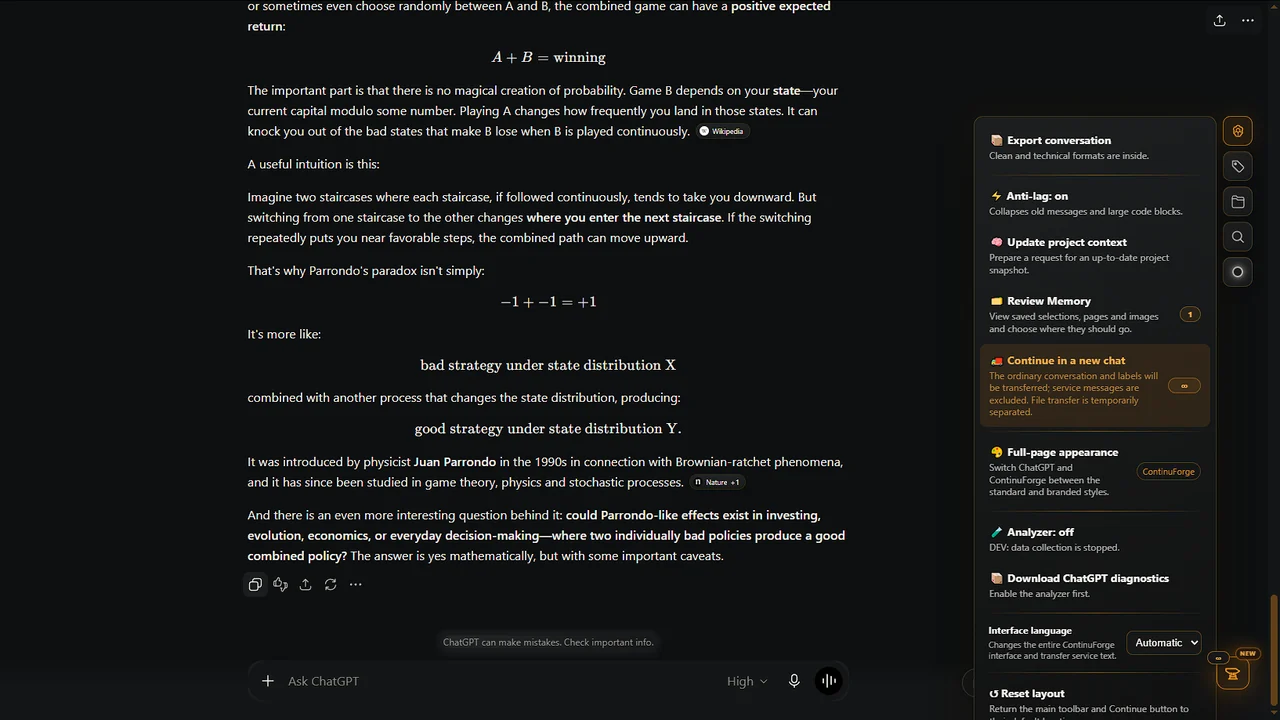
ContinuForge provides its own Continue workflow for moving ongoing work into a fresh ChatGPT conversation.
ContinuForge does not claim to automatically extract goals, accepted decisions, rejected approaches, blockers or “important” files. The workflow below describes only what the current product actually does.
The current workflow is:
- work normally in ChatGPT;
- when you want to continue in a fresh conversation, use Continue in ContinuForge;
- Continue transfers the ordinary conversation and labels into the continuation package; service messages are excluded. File transfer is handled separately in the current build;
- open the resulting fresh conversation;
- continue the work using the ContinuForge continuation package.
The screenshots on this page show the current ContinuForge interface.
This is especially useful for software development, research, writing, planning and other projects that last much longer than one chat.
If you are moving manually, what is worth writing down?
The following is manual advice for the reader, not a list of fields that ContinuForge automatically detects:
- [ ] what you are trying to achieve;
- [ ] the decisions you personally consider important;
- [ ] constraints the next chat should know;
- [ ] approaches you do not want to repeat;
- [ ] the next action;
- [ ] any files you personally decide to attach.
You do not need to reproduce the entire conversation. Keep only what you believe the next chat actually needs.
A fresh chat is not a failure
For long-running work, changing conversations can be a normal maintenance step.
The mistake is not starting a new chat. The mistake is starting a new chat without preserving the state that makes the work coherent.
Think of the conversation as the current workbench, not the entire project.
The project can continue even when the workbench changes.
Continue your work with ContinuForge
ContinuForge adds tools for people who use ChatGPT as an ongoing workspace: continuation between chats, Memory for saved web material, search, labels, navigation and export.
If your current conversation has become too large to manage comfortably, move the useful working state instead of rebuilding everything from memory.