
If an old ChatGPT conversation is no longer visible in the sidebar, do not assume it has been deleted.
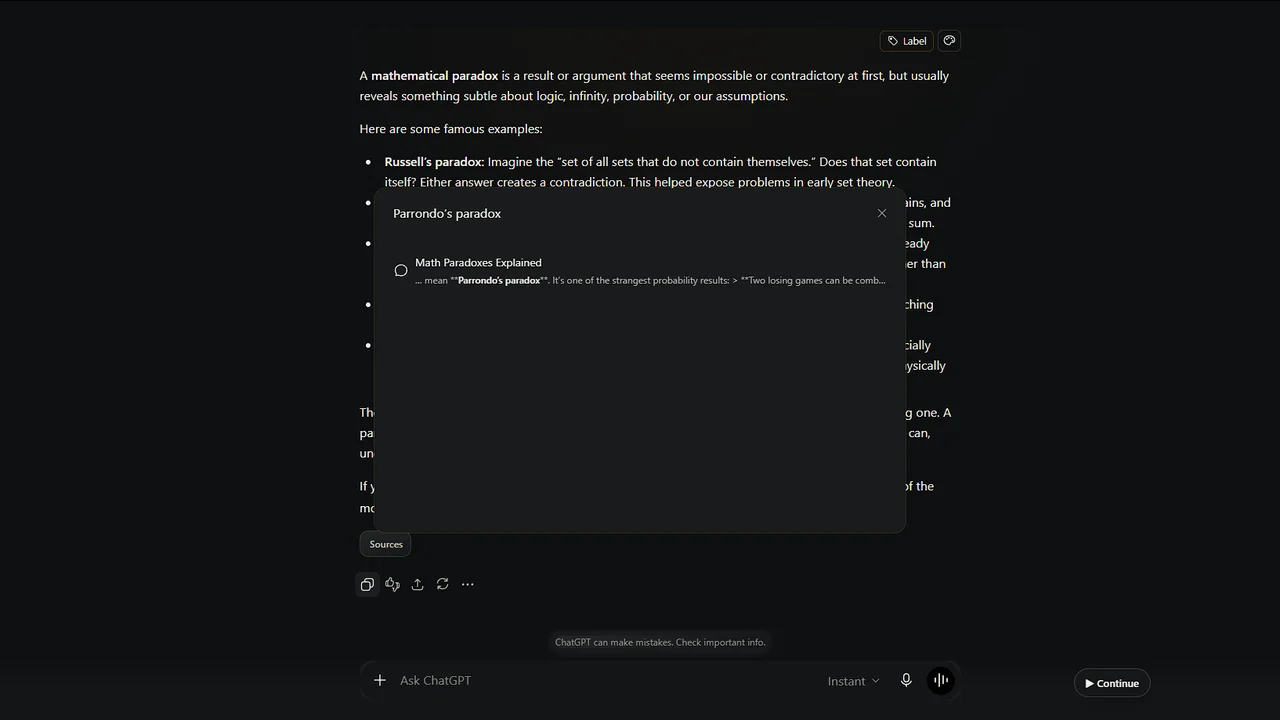
ChatGPT keeps a compact list of recent conversations in the fast-loading sidebar. According to OpenAI's current help documentation, older conversations can be trimmed from that quick list while still remaining searchable.
So the first thing to try is Search, not scrolling.
1. Search your ChatGPT history
On the web, open the Search control in the left sidebar. You can also use:
- Ctrl+K on Windows;
- Cmd+K on macOS.
Search for a distinctive word or phrase that appeared in either the title or the content of the conversation.
OpenAI currently notes that search works best with specific exact terms, so a unique project name, filename, product name or phrase is often more useful than a generic word such as “research.”
If the conversation appears, open it normally.
2. Check archived conversations
Archived is not the same as deleted.
An archived conversation can disappear from the normal sidebar while remaining in your account. OpenAI says archived conversations remain searchable, and they can also be managed from the archived chats section in Settings.
If you regularly archive finished work to reduce sidebar clutter, this is worth checking before assuming anything is missing.
3. Check the Project where the work belongs
If you use ChatGPT Projects, look inside the relevant Project.
Projects keep related chats, files and project instructions together. A conversation that is difficult to locate from a long general history may be easier to recognize when you return to the project where the work happened.
For long-running work, this is one reason to create a clear project structure instead of leaving every conversation in one global stream.
4. Deleted chats are different
If you actually deleted the conversation, the situation is different.
OpenAI's current help documentation says deleted chats cannot be recovered through the UI, APIs or support.
That distinction matters:
Not visible in the sidebar does not necessarily mean deleted.
Archived does not mean deleted.
Deleted means you should not expect a browser extension to recover the server-side conversation.
ContinuForge does not claim to restore chats that OpenAI no longer makes available to your account.
5. Data export can be a backup/reference tool
For supported ChatGPT accounts, OpenAI provides a data export from Settings → Data Controls, as well as a Privacy Portal route.
The export can contain conversation history and other account data.
This is useful as a backup/reference mechanism, but it is not the same thing as convenient day-to-day navigation. A downloaded export does not replace the ability to quickly find the right conversation while you are working.
Why history becomes difficult even when nothing is lost
The problem changes as your account grows.
With 20 conversations, the sidebar may be enough.
With 200 conversations, you start relying on memory:
“Was that pricing decision in the launch chat, the website chat, or the payment chat?”
With hundreds of conversations, remembering where work happened can become a task of its own.
Search helps when you remember the right keyword. Projects help when the conversations were organized into projects. Archiving helps reduce visible clutter.
What many heavy users still need is a consistent system for finding, grouping and continuing work, not just storing conversations.
A simple organization system
Before adding another tool, use a few habits that scale reasonably well.
Give important chats recognizable names
Use a name that describes both the project and the stage.
Better:
ContinuForge — Chrome Store submission
Worse:
New chat
Use Projects for long-lived objectives
Keep chats that belong to the same ongoing effort together.
Archive finished conversations
Archive completed work rather than leaving everything in the active list.
Search with distinctive terms
Unique names, filenames and phrases are easier to retrieve than broad generic keywords.
Start fresh chats when one thread becomes unmanageable
A project can continue across several conversations. You do not need one giant chat for the entire lifetime of the work.
Where ContinuForge fits
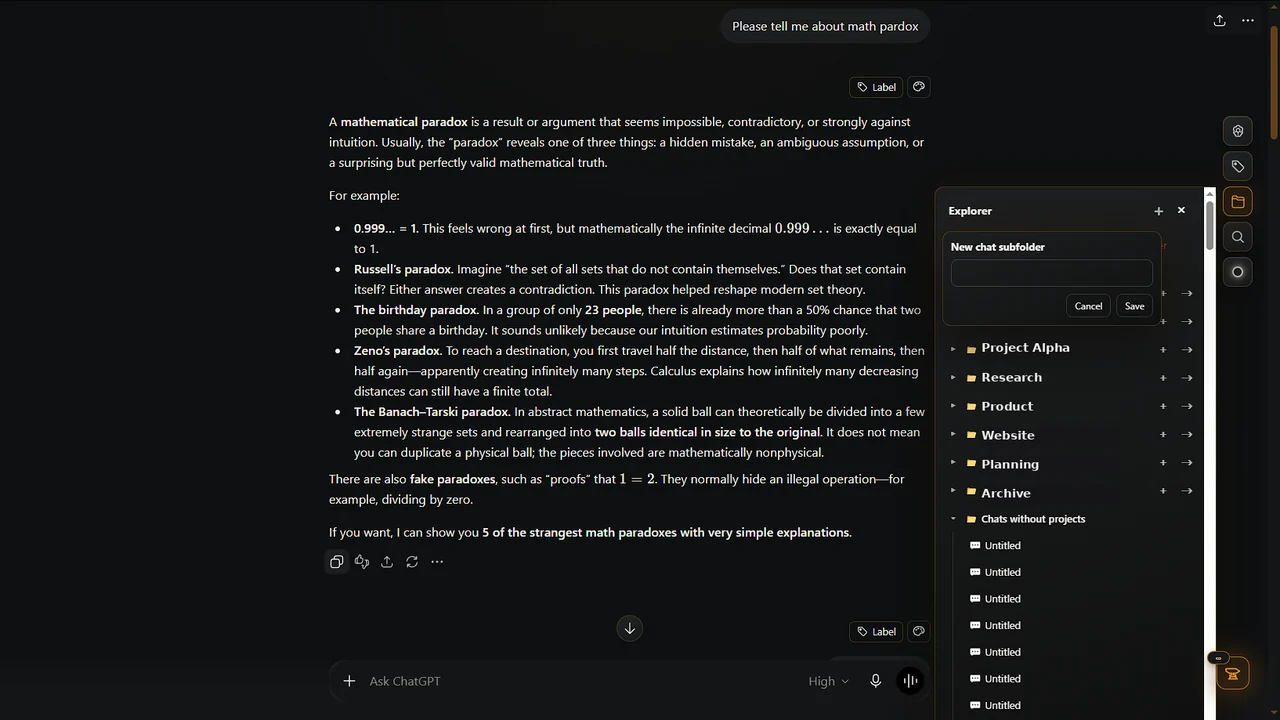
ContinuForge adds another organizational layer for people who spend a large part of their working day in ChatGPT.
Its tools include navigation/Explorer, search, labels and continuation between conversations.
The point is not to replace ChatGPT's native Search or Projects. Use those features first.
ContinuForge is useful when the problem becomes larger:
- many ongoing conversations;
- several related projects;
- important work buried inside long threads;
- a need to continue a project in a fresh chat without rebuilding the context.
Think of native ChatGPT features as the workspace and ContinuForge as an additional layer for managing long-running work inside that workspace.
If you cannot find an old ChatGPT chat
Use this order:
- Search ChatGPT history with a specific phrase.
- Check archived chats.
- Check the relevant Project.
- Confirm that the conversation was not deleted.
- If needed, request your ChatGPT data export for reference.
- Improve your organization before the next important conversation becomes hard to find.
And if the problem is no longer one missing conversation but hundreds of them, build a system that makes future work easier to retrieve.