
Research with ChatGPT often happens outside ChatGPT.
You read an article, find a useful paragraph, discover a chart, open documentation, notice an image or collect several pages that might matter later.
The usual response is to create more browser tabs or bookmarks.
That saves the location of the information. It does not necessarily save the useful piece of information in a form that is ready for your next ChatGPT session.
ContinuForge Memory is designed for that gap.
Bookmarks are good at returning you to a page
A bookmark answers:
“Where was that website?”
That is useful when you want to return and read the page again.
But a research workflow often asks a different question:
“What exactly did I want to use from that page, and which ChatGPT project was it for?”
A browser bookmark may leave you with dozens of links that still need to be reopened, reread and sorted.
Copying everything directly into a ChatGPT chat creates the opposite problem: you interrupt your current task and start filling the conversation with material you may not need yet.
A better pattern: capture now, decide later
A useful research inbox separates two moments:
Capture: save something while you are browsing.
Process: decide later where it belongs.
That is the idea behind ContinuForge Memory.
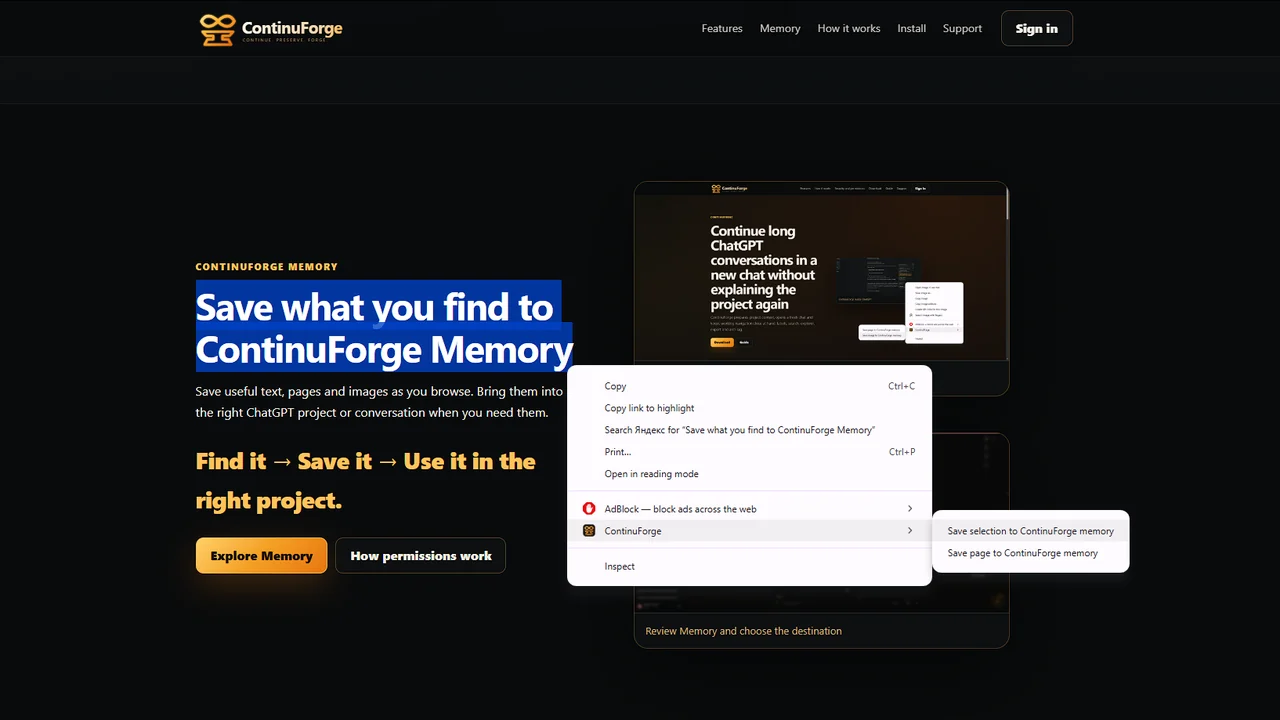
From the browser context menu, ContinuForge can save supported material such as:
- selected text;
- a web page;
- an image.
The saved item goes into ContinuForge Memory so you can return to it later instead of immediately deciding which chat should receive it.
Example: a 30-minute research session
Imagine you are preparing a launch plan.
During one session you find:
- a pricing paragraph on a competitor site;
- a useful forum comment;
- a chart showing browser market share;
- an article about Chrome extension onboarding;
- an image you want to discuss with ChatGPT later.
Without an inbox, you may end the session with five tabs, three bookmarks and two screenshots somewhere in Downloads.
With ContinuForge Memory, the workflow can be:
- highlight the useful paragraph;
- right-click and save the selection to ContinuForge Memory;
- save the relevant page;
- save the image;
- keep browsing;
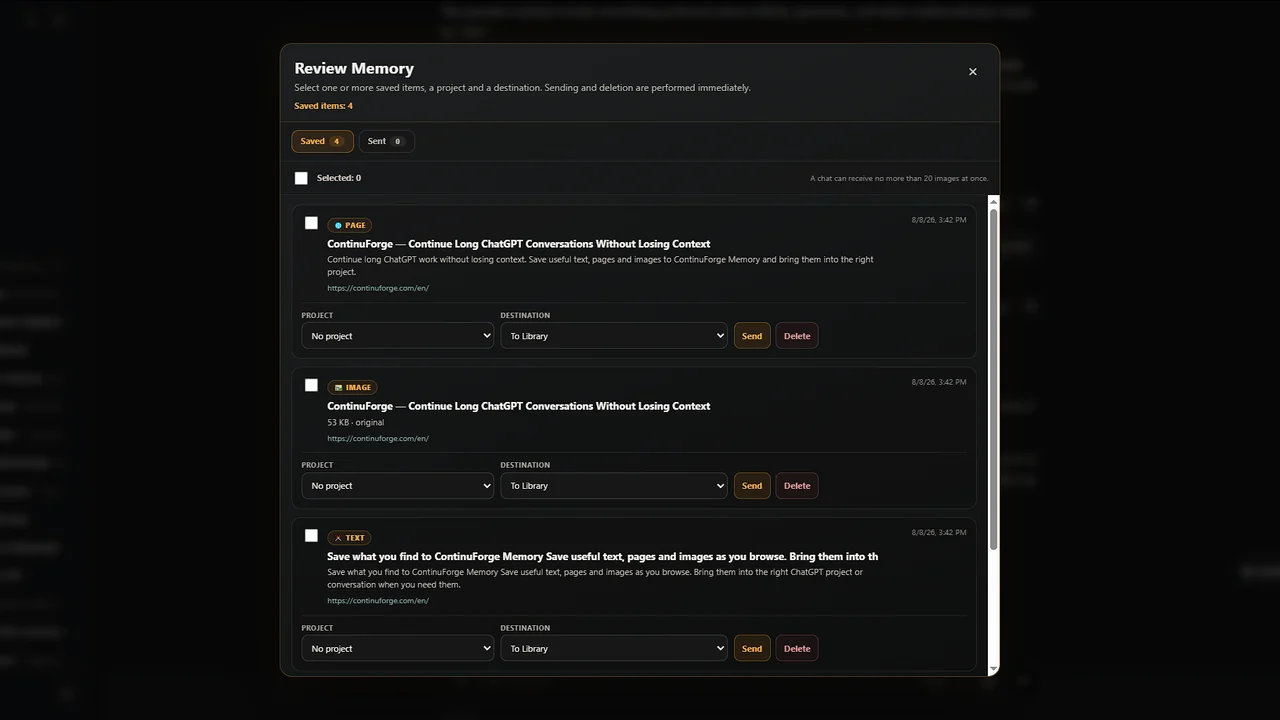
- later open Review Memory;
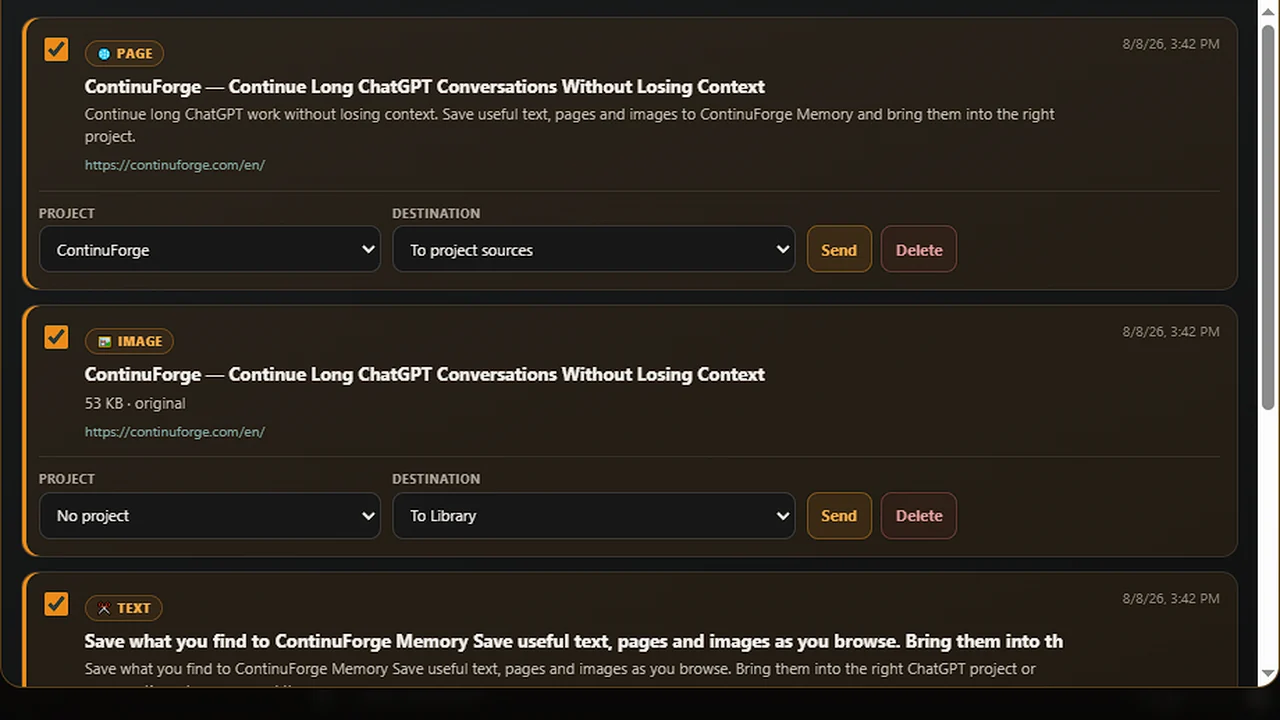
- select what matters for the current task;
- send it into the appropriate supported ChatGPT workflow.
The important change is that collection and organization no longer have to happen at the same moment.
What can you do from Review Memory?
ContinuForge Memory is not intended to be a second permanent browser bookmark database.
It is an inbox for material that needs a decision.
You can review saved items, select what matters, route material through the destinations supported by the current ContinuForge version, and remove items that no longer matter.
That makes Memory useful for:
- research;
- product comparison;
- collecting sources before writing;
- visual references;
- technical documentation;
- planning;
- any task where useful information appears before you know exactly how you will use it.
Why not just paste everything into one ChatGPT conversation?
You can, but that couples browsing to the current chat.
Suppose you are working on a website and discover an article that may be useful next week for marketing. Pasting it into the website conversation adds irrelevant material to the current thread.
Saving it to an inbox lets you keep the current conversation focused.
Later you can decide:
- this belongs in a marketing chat;
- this should become part of project work;
- this image is no longer needed;
- these three items belong together.
What about ChatGPT Projects?
Projects are useful for keeping related chats, files and instructions together.
ContinuForge Memory solves a different step:
capturing useful material before it has been assigned to a project or conversation.
A practical workflow is:
Web → ContinuForge Memory → review → ChatGPT chat/project
This is why ContinuForge Memory should not be confused with ChatGPT's built-in Memory feature either.
ChatGPT Memory is about information ChatGPT can remember or reference from your interactions, depending on your settings. ContinuForge Memory is a user-controlled inbox for saved web material.
A simple research discipline
Even with a capture tool, do not save everything.
Use three questions.
Is this actually useful?
If you would never quote, compare, analyze or reference it later, do not save it.
Why am I saving it?
A strong saved item has an obvious future use:
- compare;
- verify;
- discuss;
- summarize;
- add as evidence;
- use as a visual reference.
Can I identify it later?
Keep enough source context to understand what the item is when you review it.
A good inbox is small enough to process.
ContinuForge Memory Core is free
The core Memory workflow is intended to remain available in ContinuForge Free: capture supported web material, review it later and use the existing Memory workflow.
Pro also includes Build & Send Memory Archive, which combines selected Memory text, saved pages and images into one ZIP archive. The Free capture, review and routing workflow remains available separately.
Save the useful part, not another tab
Tabs are temporary.
Bookmarks are addresses.
A research inbox preserves the material you intend to use.
That is the practical difference:
A bookmark takes you back. ContinuForge Memory brings useful material into your ChatGPT workflow.